Problem:
When connecting to an Azure File Share from a Windows client, you receive one of the following errors:
- Net Use Error: “System error 86 has occurred. The specified network password is not correct.”
- PowerShell Error: “New-PSDrive : The user name or password is incorrect”
And after validating your credentials, you are still getting one of the errors above.
Solution:
For your Azure Storage Account, update the encryption type for the associated computer account in Active Directory to AES 256. You will need to run the script in the code block below. Be sure to update the variables! Ideally, use the workstation you used to domain join your Azure Storage Account to run the script. The workstation will already have the AzFilesHybrid module installed which is a requirement for the script. If the workstation no longer exists, refer to this MS Docs webpage to install the module.
Import-Module -Name AzFilesHybrid
Connect-AzAccount
$SubscriptionId = "<your-subscription-id-here>"
$ResourceGroupName = "<resource-group-name-here>"
$StorageAccountName = "<storage-account-name-here>"
Select-AzSubscription -SubscriptionId $SubscriptionId
Update-AzStorageAccountAuthForAES256 -ResourceGroupName $ResourceGroupName -StorageAccountName $StorageAccountName
Explanation:
When domain joining an Azure Storage Account, there are a few options for the “EncryptionType” parameter. Those options are referenced on the MS Docs webpage. By default, if you don’t specify an encryption type, both RC4 and AES 256 are configured. If you configure the default encryption option or RC4 only and your organization enforces stricter security requirements, then you will experience the error messages referenced above.
The security requirement can be managed in Group Policy using the “Network security: Configure encryption types allowed for Kerberos” setting. Organizations typically configure this setting with “AES256_HMAC_SHA1” and “Future encryption types” enabled. This setting can be found in Group Policy Management at: Computer Configuration > Windows Settings > Security Settings > Local Policies > Security Options.
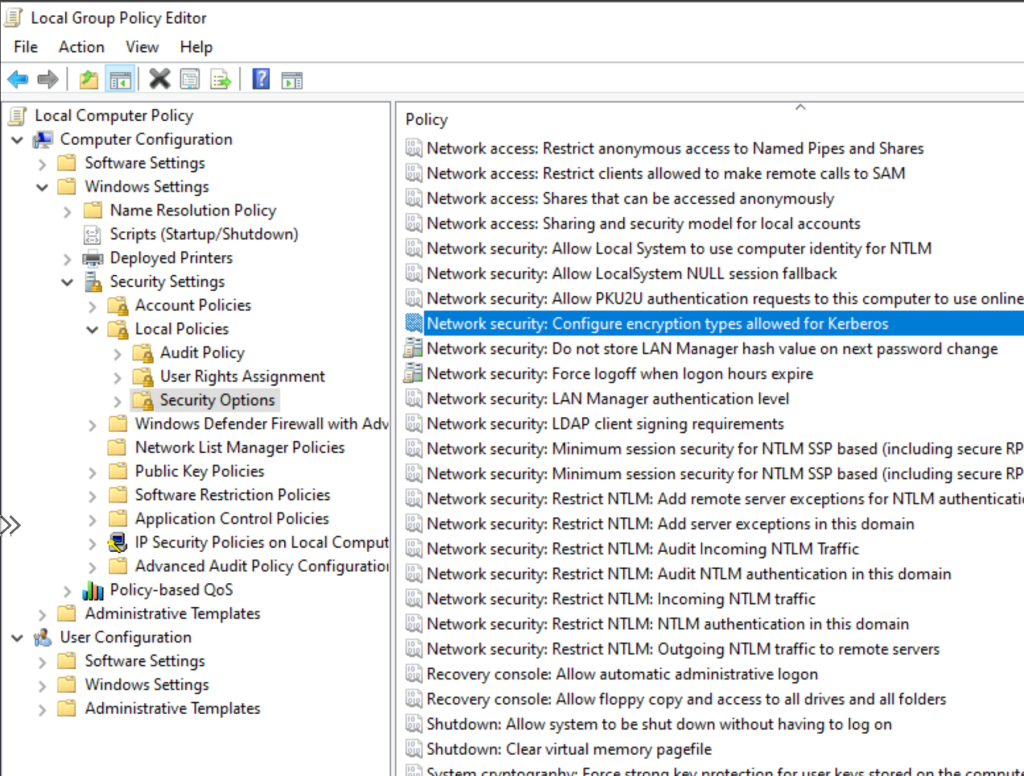
Now you may be asking yourself, “why can’t I use the default option when domain joining my Azure Storage Account since both encryption types are enabled?”. If you review the MS Docs webpage, the note next to this parameter suggests the default value will enable both encryption options. However, in my testing with the Group Policy setting configured for AES256 encryption, the default configuration fails and I would assume this is a bug.
 Jason Masten